Showing posts with label new. Show all posts

New Tumblr Interface!


Hello Tumblr fans! On October 20, 2014 Tumblr announced a new interface that will simplify the dashboard. Two new features were add: sticky header and wider posts.

Tumblr Staff Announcement:

"Two li’l changes to the dashboard rolling out right now…
  • Sticky header: Scroll all you want and still make posts, search for things, check your messages, see your loyal Tumblr logo, etc.
  • Wider posts: We went ahead and did it. There was no reason not to."


New Fonts for your Tumblr!


Looking for new and unique fonts? Check the new fonts from Dafont.com a 100% website that offers over 50,000 different fonts. Click on the picture and it will re-direct you to the official font website.

Copyright / Comment: Tumblog-it! is not affiliate it with this website - this article is only for public knowledge to make your blog and graphics even better!
.


Tumblr censoring NSFW/adult content. (Tumblr Staff talks about the details)


On July 19, 2013 one of the members from the official Tumblr Staff blog, have clear up a few misunderstanding information about the Censoring of NSFW/adult content. Here's the explanation of what David (from Tumblr Staff) said: 

"All, we’ve heard from a bunch of you who are concerned about Tumblr censoring NSFW/adult content. While there seems to be a lot of misinformation flying around, most of the confusion seems to stem from our complicated flagging/filtering features. Let me clear up (and fix) a few things:

1. Last year, we added “Safe Mode" which lets you filter out NSFW content from tag and search pages. This is enabled by default for new users and can be toggled in your Dashboard Settings. As some of you have pointed out, disabling Safe Mode still wasn’t allowing search results from all blogs to appear. This has been fixed.

2. Some search terms are blocked (returning no results) in some of our mobile apps. Unfortunately, different app environments have different requirements that we do our best to adhere to. The reason you see innocent tags like #gay being blocked on certain platforms is that they are still frequently returning adult content which our entire app was close to being banned for. The solution is more intelligent filtering which our team is working diligently on. We’ll get there soon. In the meantime, you can browse #lgbtq — which is moderated by our community editors — in all of Tumblr’s mobile apps. You can also see unfiltered search results on tumblr.com using your mobile web browser.

3. Earlier this year, in an effort to discourage some not-so-nice people from using Tumblr as free hosting for spammy commercial porn sites, we started delisting this tiny subset of blogs from search engines like Google. This was never intended to be an opt-in flag, but for some reason could be enabled after checking off NSFW → Adult in your blog settings. This was confusing and unnecessary, so we’ve dropped the extra option. If your blog contains anything too sexy for the average workplace, simply check "Flag this blog as NSFW" so people in Safe Mode can avoid it. Your blog will still be promoted in third-party search engines.

Aside from these fixes, there haven’t been any recent changes to Tumblr’s treatment of NSFW content, and our view on the topic hasn’t changed. Empowering your creative expression is the most important thing in the world to us. Making sure people aren’t surprised by content they find offensive is also incredibly important and we are always working to put more control in your hands.

Sorry for all of the confusion. If you have any more concerns or suggestions on how we can make these features clearer or more useful, please email us!"

For any inconvenient or more information you can use the Tumblr official email at:
support@tumblr.com.


New! Quick Features from Tumblr


Hello Everyone! If Log In Tumblr every day you may have notice some changes on the Quick Features that allows you to: Ignore someone, Share the post, Reply, Re-blog and Like the post. 

What's difference? The latest update from Tumblr change from top-to-bottom the Quick Features. Now you be able to find this option at the end of each post. I made a simple table of what each icon means:

= the "stop sign" means IGNORE the person who made the post.
= the SHARE button allows you to share the post by E-mail or Permalink.
= the REPLY button, you can share your comments if the author of the post allows it.
= everyone knows this one! is the famous RE-BLOG feature. 
= LIKE the post! If you have a favourite post you do not wish to forget, just click on the heart and it will go directly to your Likes List. Don't know how to find the List? We have a tutorial for you! Click HERE.
= this is your POST OPTIONS, it will appear after you post or queue a photo, text, quote, video, etc. The Post Options will allow you to EDIT or DELETE the post you just made. 


Know the basics of Tumblr. (text and video)


Hello Everyone! New to Tumblr.com? or even if you a Tumblr User is always good to know the basics of "How to Tumblr". Tumblr bloggers just like you and me, have created tutorial websites, videos and even books of  How to make your Tumblr experience better. 

If you just discover the world of Tumblr here a few tips and videos that will help you understand how to "Tumblr":
• First know: What is tumblr?
• Tumblr is a new world for you, is always good to know the different terms and words that people often use for blogging. Tumblog-it! have created  - Tumblr Dictionary: Read, Learn and Discover the Tumblr World. 
• How to start? Here's a video from Youtube.com made by yin97825 and Nicki rayraynicki  that explains the basics of Tumblr.

TUMBLR 2013 VERSION


Tumblr Upgrade: The Reblog Option

Click on the photo to view larger.

Hello Everyone! On January 25, 2013 Tumblr Staff officially release their new upgrade that will allow users to have an easier and fun experience with Tumblr. Here's a quick image of how the Reblog works.

An upgrade, years in the making…
When we imagined Tumblr more than seven years ago, we dreamed of offering creators a new canvas. Every post would be a raw look through the author’s eyes and mind. We imagined the interface disappearing as these subjects came to life.

For years, this vision was challenged by limits in browser technology and an increasingly daunting set of Tumblr features to support. But today, we take a huge step.
After months of careful crafting, we’ve reduced creation on Tumblr to its essence, while carrying over every single feature and making room for some BIG new ones (like completely customizable drag-and-drop photoset creation, faster uploads, and inline reblogging!). We can’t wait for you to try it.

Ok, so what's new? 
• Faster Reblogging.
• A new Reblog settings that allows you to Custom the URL, content and date.
• Language (you be able to choose different languages now)
• The Strikethrough option for you paragraph. (Example)

The upgrades have started rolling out and will be available for everyone already. If you have any issues make sure to contact them at the Help Center.


Welcome to Tumblog-it! Backgrounds Library!


Hello Everyone! Imagine you like a background for your Tumblr blog, but can't find it again? Tumblog-it have created a full Library FREE of use for you. Discover all the backgrounds available! 

Click HERE to see the full Library!

HOW TO USE THE LIBRARY: 
1. Click on the arrow from the left-side column and you be able to see all the Backgrounds FREE for your Tumblr Blog!


2. So you want a background? What to do? Click on the background you wish and on the right-side of your screen find the LINKS available for the photo:


3. Click on the code, and it will automatically copy the code and paste it on your blog. 

Copyrights: We do not take any credit for any background FREE and public to use for Tumblr Users. If you're the owner of the background image and do not wish you publish it - send us a message HERE. With the category and description of your background.


Tumblr Tricks you must now! - Part #1


Hello everyone! Here's a few tricks that will surprise you! If you didn't know now you can show your friends how make Tumblr even more easy. Hope you enjoy it!

• Did you know you can RE-BLOG without opening the actual post?
Click ALT+ and the word REBLOG on your Tumblr  and that's it! The post will be re-blog in one-click.

• Do you know what's a Hashtag?
Hashtags are words or phrases prefixed with the symbol #, is a short message used on social networking (aka. Twitter, Tumblr, Facebook, etc) that can be tag with any word.

• Did you know you can use your KEYBOARD to navigate on Tumblr?
J  - scroll UP on tumblr
K - Scroll DOWN on tumblr

• Did you know you can UNFOLLOW and ASK a person without visiting their Tumblr blog?
Click on the portrait photo of the blog you wish to unfollow or ask something. A small window will appear with this options. 


• Did you know you don't have to Scroll UP on you dashboard to reach the first post?
This arrow will appear on your right-side corner at the bottom of the screen. Just click on it and it will automatically take you to the first post on your dashboard. No more Scrolling up!


"Random Tumblr Spam" Helpful Tips

Hello Everyone! I notice a lot of Tumblr users are having this "Random Tumblr Spam", the spam just "appears" on your blog and is extremely annoying. Here's a few tips to fight back this annoying pain in the lower back spam:

DO NOT click on the link the photo have. It you click on the picture it has a big chance of your Tumblr account getting hack. Also tell your followers to not click on the Spam photos.

• Contact Tumblr Support as soon as possible to fix your blog. Click HERE it will take you directly to the help support page. If you don't see the contact email, simply type "support" on the search bar.

• Change your Blog password. If you have more than one account, change their passwords also. Here are some ideas of how to choose a good password.

• Uncheck the "Let people look me up by this address" in the Blog Settings. How to get there? click HERE for the tutorial.

• On Blog Settings - the application tab revoke anything that looks suspicious.

• I don't know if this one will work but I read into it, and you can try it: "In your settings go to your blog name link on the left hand side then scroll down and locate the ‘Post by Email’ section. Click reset." by punkatheistmomma

• Delete all the "Random Spam Post" made.

I have contact Tumblr Support and yes - you must change your HTML theme.
"If your blog is showing a fake Tumblr login page, a fake age verification, or anything other than your normal blog theme, it is recommend it to change your theme. Click the Themes button. Choose a new theme. Click the Use button. And, click the Save button." - by Tumblr Support


Tumblr upgrades their Android Application

Hello Everyone! Tumblr Staff have officially announced a upgrade for Android users: "We’re excited to announce yet another improved version of the Android app! Get ready for some fantastic updates"
• Clearer blog notifications — now you can see exactly which post was liked, reblogged, or commented on.
• Faster photo posting — quickly choose from the last 40 shots on your phone.
• Pinch and spread to zoom in on photos!
• Images load even faster on your Dashboard.
• Redesigned and rebuilt Post screens for faster posting.
• System notifications for post uploads — find out when something posts successfully or fails to upload.
• If you haven’t gotten the update notification yet, grab the latest version of the app.


Fun tricks and tips: Create an Animated GIF for your Tumblr Blog!

Hello Everyone! Let's be honest -- we all want to have cool graphics and gifs on our blogs, and I have a great website that will help you create a fun / colourful Tumblr. The website Picasion allows you to create an Animated GIF! and best of all is free. Interested? Here's what you need to do -- is super easy! Take a look at my example:

create animated gif online
Don't know what GIF means? Visit our Tumblr-Dictionary!

First Step: You need to have 3-photos. For example I made 3 different pictures on the Paint program. You don't need to be a pro-graphic designer or anything to try this. Feel free to use this pictures as an example if you want to try the website.
Picture 1
Picture 2
Picture 3

Second Step: Visit the website picasion.com to create the animated GIF. 
• Where it says "Choose File" - choose the pictures you want on the GIF. 
• Remember to follow the order 1,2 and 3. Choose the size and speed of the animation.


• After you finish creating your GIF, log in to your Tumblr Account.
• For the animation to work on Tumblr choose the code for blog/website and COPY it. 


• Go to your Customize Theme Option. (Don't know where it is? Visit: Where is the “Customize Theme” Option?

•  Edit HTML and PASTE the code wherever you want to use the Animated GIF. And you're finish!

Note: If you want to use this code on the post section it works also. Just paste it on the HTML option. 


Tutorial: Add an Image Header on Tumblr (Technique #1 and #2)


Hello Everyone! Want to add a Image Header but just don't know how? There's 2-simple ways to do it.


First we need to make the banner/image we want to use. Using a program like Photoshop, Paint Shop Pro or even Paint will allow us to make the banner. If you don't have any programs to use, you can  make the banner on the following internet pages:

http://quickbanner.net/ (allows you to customize font, size and background of the banner)
http://www.flashvortex.com/ (ads-look-alike banner)

I will try to search for more available banner-maker websites, but till now I have only found those 2 safe websites. The other's activate Tumblr security system.

• Step 2. Once you have your banner using the website or program, we need to "upload" the banner to Tumblr. You can use: Tumblr upload static file or a free image host. If you don't know any here's a few FREE and safe image host you can use:
http://tinypic.com/
http://imageshack.us/
http://www.postimage.org/

• Step 3. Now we have the banner. Let's go add it to  your Tumblr Blog.
○ Log in your Tumblr Account.
○ Find the Customize Theme Settings. If you don't know how visit: Tutorial: Where is the “Customize Theme” Option? (New Tumblr Design!)

• Now here's the important part. There's 2 techniques you can use to Add a Image Header on your Tumblr Blog. Let's start with the simplest one, and if you don't like it, try the second one.

○                 ○                 ○

Technique #1
1. Copy the following code:
 <img src="url" alt="some_text"/>

2. Paste the code below your <head> tag.
3. Change the URL for you banner URL.
4. Click on Update Preview and see how it looks like. If you like it, click on Save then Close.


○                 ○                 ○
                                            
Technique #2

1. Find the following code on your theme:
<div id="title"><a href="/">{Title}</a></div>
(use Control + F to find it faster)
 
2. Replace that code with this one:
<a href="/"><img src="Header_URL">

3. Replace the Header_URL with your banner URL link.
4. Click on Update Preview and if you like how it looks like, click on Save then Close.

Now you have finish and should have Image Header on your Tumblr Blog. Happy Blogging!


Tutorial: Where is the “Edit Theme” Option?


Hello Everyone! Tumblr is constantly re-designing the user-dashboard or "interface", that's why it is important to always follow the updates and know where your options are! Tumbr change the Customize Theme option to Edit Appearance.


1. In your dashboard (main page) find the Account Settings on the right-top corner of your screen. The Account Settings is the last button, once you click find the Edit Appearance. 


2. Find the Website Theme and Edit Theme, and you're ready to start customizing your theme!


TUMBLR OFFICIAL NEWS

staff:
It’s Tumblr Tuesday! Here’s some Tumblr blogs we hope you’ll enjoy.
The Daily Forlorn
Paul Hornschemeier posts daily drawings of filmmakers, toys, Victorian beasts, authors, work in progress, and character actors from bygone TV, all in an attempt to map his own brain. Above: An internal self-portrait.
SHARK WEEK
The good people at the Discovery Channel love sharks so much that they’re celebrating the 25th anniversary of Shark Week this very moment!
Literary Jukebox
Daily quote from a favorite book, thematically matched with a song.
SciSpotlight: NYSCI News Digest
Updates on events and topics based on science, technology, and learning from the New York Hall of Science.
Contemporary Arts Museum Houston
The Contemporary Arts Museum Houston is a non-collecting institution dedicated to presenting the best and most exciting international, national, and regional art.
For more updates on what’s new, check the official New & Notable Tumblrsblog!

#3 Tutorial: Using a URL as a LINK on your posts

Hello Everyone! You have reach the final Tutorial on How to add Direct Links on a Post. For this step-by-step tutorial I will show you how to Add a URL as a Link on your post, Is super easy and the quickest technique of all three.

If you wish to see the other techniques, you can visit:
Tutorial #2 How to Make a Word Link within a paragraph
Tutorial #3 Full URL on your Post

LET'S START THE TUTORIAL:
1. This tutorial is alike the #2, you must first choose the text option. Create your paragraph or sentences.


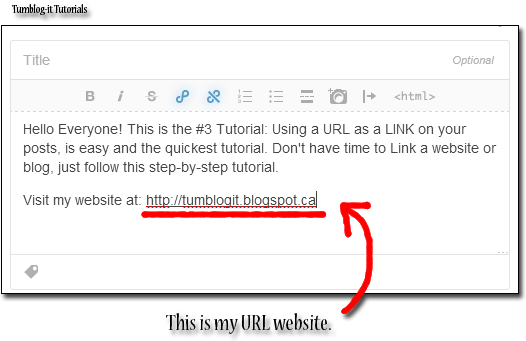
2. Now copy the URL you wish to share, and PASTE it on the Post. Here's an example:


3. To finish just click on Publish and you're done. This is one of the simple + quick ways of Links. It is used by most Tumbloggers, why? cause is super easy!

Tumblog-it! Tips: If your URL is to long it doesn't look appealing to the visitors, try the Tutorials #1 and #2 for a shorter link. 


Tutorial: How to make a Direct Link Post?


Hello Everyone! Since Tumblr is always up-grading and changing layouts (lol!) Tumblog-it! will keep updating the tutorials. To make a Direct Link Post there's 3 different options, but for now I will give you a tutorial step-by-step of the easiest way of making a Direct-Link.

If you wish to see the other techniques, you can visit:
- Tutorial #2 How to Make a Word Link within a paragraph
- Tutorial #3 Full URL on your Post

LET'S START THE TUTORIAL:
1. The fast + easy technique to Direct Link a Post is using the "Link Option" on your Dashboard. (your Tumblr homepage), the button looks like:


2. A small window will appear, like the picture below. If you add the URL (internet address) Tumblr will automatically give you the Name and description of the website/blog.

3. You can change the name and description if you don't like it. The "green name / box" is how the Link will be post on your Tumblr. Click on "Publish" and you finish. See how easy was that?


Icons and Buttons: Part #2

Icons and Buttons: Part #2 - If you miss the Part #1 you can visit it HERE. Happy Blogging!
                                 

(icons and buttons found at: brennahaspixels)
ANIMALS

        … …                                                                          


CATS


bears


Jellyfish