Hello Everyone! If Log In Tumblr every day you may have notice some changes on the Quick Features that allows you to: Ignore someone, Share the post, Reply, Re-blog and Like the post.
What's difference? The latest update from Tumblr change from top-to-bottom the Quick Features. Now you be able to find this option at the end of each post. I made a simple table of what each icon means:
 = the "stop sign" means IGNORE the person who made the post.
 = the SHARE button allows you to share the post by E-mail or Permalink.
 = the REPLY button, you can share your comments if the author of the post allows it.
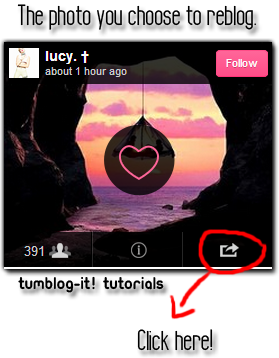
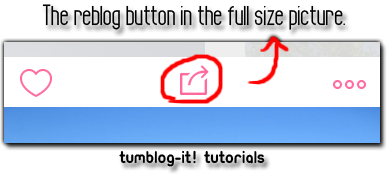
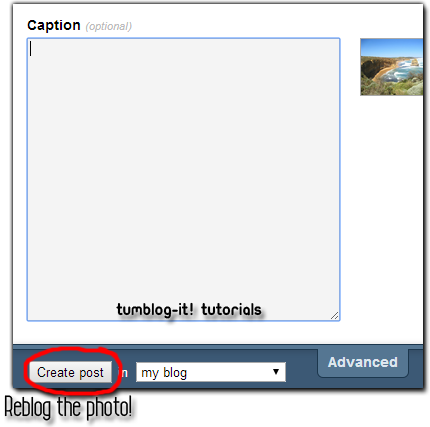
 = everyone knows this one! is the famous RE-BLOG feature.
  = LIKE the post! If you have a favourite post you do not wish to forget, just click on the heart and it will go directly to your Likes List. Don't know how to find the List? We have a tutorial for you! Click HERE.
 = this is your POST OPTIONS, it will appear after you post or queue a photo, text, quote, video, etc. The Post Options will allow you to EDIT or DELETE the post you just made.