Showing posts with label link. Show all posts

Brands that use Tumblr. I bet you didn't know this one!


Tumblr is a free tool for everyone, and I mean Everyone! Even popular brands like IBM, The New Yorker, Elle, Huffington Post  or Twitter have a Tumblr account. Take a look at the popular brands that have Tumblr, and who knows? maybe you will start following them too. 

WEBSITES
1. Twitter (http://status.twitter.com/)
2. Huffington Post (huffingtonpost.tumblr.com)
3. College Humor (http://blog.collegehumor.com/)

MEDIA BRANDS
1. ABC World News (abcworldnews.tumblr.com)
2. Comedy Central (comedycentral.tumblr.com)
3. Sesame Street (sesamestreet.tumblr.com)

FASHION BRANDS
1. Oscar de la Renta (oscarprgirl.tumblr.com )
2. ModCloth (modcloth.tumblr.com )

MAGAZINES
1.Glamour (glamour.tumblr.com)
2. Elle (elle.tumblr.com)
3. GQ (gq.tumblr.com )
4. Lucky Magazine (luckymag.tumblr.com )
5. The New Yorker (newyorker.tumblr.com )
6. Rolling Stone (rollingstone.tumblr.com)
7. Teen Vogue (teenvogue.tumblr.com)
8. Vogue (vogue.tumblr.com)
9. W Magazine (wmagazine.tumblr.com )


Tumblr Dictionary! from Tumblog-it!

Hello! I have been giving tutorials and links for everyone to help you improve the Tumblr experience, but I notice there's a lot of "tumblr words" people doesn't know about. I decide to make a Tumblr Dictionary so everyone can start knowing the most common words from tumblr.

What does re-blog means? What is a Post? and such. Please share this dictionary with anyone that is learning the Tumblr world. Remember to credit Tumblog-it for it! 


Tutorial: How to add a Link on your Description

If you ever wonder How to add a Link on your Description Box - is super easy!
How to add a Link on your Description - is a very easy and fast tutorial, all you need to do is:

1. Log into your Tumblr Account.
2. On the Top of the Page find the Blog Settings. The icon looks like a wheel- like in the photo:


3. Choose the Blog you want to add a Link to the Description and click on Theme Customize. If you don't know how to find it you can click on the Tutorial: Where is the “Customize Theme” Option?

3. Find the Description Box and type the following code: (you can copy-paste)
<a href=”url”>Link text</a>


4. Now replace
• url = with the url (internet address) that you want your visitors to visit
• Link text = is what your visitors are going to see on the blog.

5. After you finish changing the url and Link text - click on "Update preview" and if you like how it looks click SAVE then CLOSE. You just added a Link to your Description Box -- here's an example of how it looks like:


#3 Tutorial: Using a URL as a LINK on your posts

Hello Everyone! You have reach the final Tutorial on How to add Direct Links on a Post. For this step-by-step tutorial I will show you how to Add a URL as a Link on your post, Is super easy and the quickest technique of all three.

If you wish to see the other techniques, you can visit:
Tutorial #2 How to Make a Word Link within a paragraph
Tutorial #3 Full URL on your Post

LET'S START THE TUTORIAL:
1. This tutorial is alike the #2, you must first choose the text option. Create your paragraph or sentences.


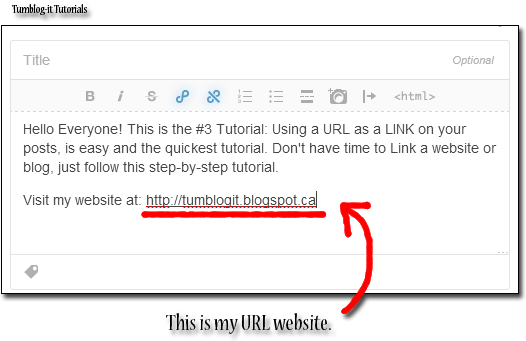
2. Now copy the URL you wish to share, and PASTE it on the Post. Here's an example:


3. To finish just click on Publish and you're done. This is one of the simple + quick ways of Links. It is used by most Tumbloggers, why? cause is super easy!

Tumblog-it! Tips: If your URL is to long it doesn't look appealing to the visitors, try the Tutorials #1 and #2 for a shorter link. 


#2 Tutorial: How to add a Word Link on your Post

Hello Everyone! This is the Tutorial #2 of How to add a Word Link. Is super easy and I be showing you step-by step how to do it. If you wish to visit our previous / next Tutorial on How to add a link just click on:

- Tutorial #1 How to Make a Direct Link Post
- Tutorial #3 Full URL on your Post

LET'S START THE TUTORIAL
1. In this tutorial you will learn to add a "Word Link" within a paragraph. What does this mean? It means when the person "clicks" on a word, he/she will be re-direct to another website or blog. Like the photo-example below:


2. To begin, you must create a paragraph, using the Dashboard option called "Text". Write your paragraph or sentences.

3. To Insert / Add a Word Link, you must select a text to do this simple double-click on the word or click where you want to begin the selection, hold down the left mouse button, and then drag the pointer over the text that you want to select.

4. Now that you have Select a Word, click on the "Insert/Edit Link Option" like in the photo below:


5. You're almost finish, now simply add the URL and Title of the Word Link. The title is the short-description that appears when your visitor hovers over the selected word. For example my description will say "This is Tumblog-it

Tumblog-it! Tips → Open Link a new Window → Recommended for visitors, easy friendly interface, allows the visitor to fast-navigate to another website without leaving your Tumblr blog.


6. To finish just click on "Insert Link" and you're Word Link is ready. If you wish to Link a complete sentence just follow the same instructions. Just Publish the Post and you have learn how to do a WORD LINK, good job!

Tutorial: How to make a Direct Link Post?


Hello Everyone! Since Tumblr is always up-grading and changing layouts (lol!) Tumblog-it! will keep updating the tutorials. To make a Direct Link Post there's 3 different options, but for now I will give you a tutorial step-by-step of the easiest way of making a Direct-Link.

If you wish to see the other techniques, you can visit:
- Tutorial #2 How to Make a Word Link within a paragraph
- Tutorial #3 Full URL on your Post

LET'S START THE TUTORIAL:
1. The fast + easy technique to Direct Link a Post is using the "Link Option" on your Dashboard. (your Tumblr homepage), the button looks like:


2. A small window will appear, like the picture below. If you add the URL (internet address) Tumblr will automatically give you the Name and description of the website/blog.

3. You can change the name and description if you don't like it. The "green name / box" is how the Link will be post on your Tumblr. Click on "Publish" and you finish. See how easy was that?