Showing posts with label post. Show all posts

Daily Post Limit on Tumblr


Hello everyone! Sometimes you start re-blogging and suddenly you realize you have reach a limit? wait - there's a limit in Tumblr? Yes! If you're a re-blogger fan you must know that the maximum amount of posts per day is 100 text, 150 on photos and re-blog 250.

The limitation applies to any photo, text, music, videos, quotes and chat that you post on your Tumblr Blog. It also applies for re-blog posts of any kind. If you reach the limit the only action you're able to do is LIKE a post, unless you wait till 12.00 am for reset time. Here are some basic questions of the Daily Post Limit:

1. What Is Tumblr Daily Post Limit?
(Official Nov. 14, 2013 Update)
250 daily Posts (includes reblogs) of any type: text, photos, videos, chat, etc.
100 text posts
150 photo posts

2. When I Can Post Again?
Once The Daily Post Limit resets at 12.00 am (midnight). (24 hours)

4. Is there any way to know how many posts you have left?
Yes! There's a Tumblr Post Limit Checker made by underr8ted. (tumblr name) 
You can visit the website: HERE!

SHARE IT: This information have been taken from the Tumblr Tag Forum. If you have any more information to share about the Daily Post Limit please write us at Tumblog-it! and let's us know what we're missing. Thank you.

Tutorial: How to Queue in Tumblr. Keep your Blog Active and Consistent.

Hello Everyone! Sometimes we cannot log in on Tumblr for some random reasons, but you feel like you want to keep re-blogging for all your followers. Ever have that feeling? Well I have great news for you, Tumblr allows you to Queue photos, text or anything else you wish. 

What does Queue means? 
Queue in Tumblr means to aline by date photos, text, quotes, audio, links or videos that will be posted later on. The queue lets you stagger posts over a period of hours or days. It's an easy way to keep your blog active and consistent.


Less read and more action! -- Let's start the tutorial.
• First we need to log in the Tumblr Account, find the blog you wish to add Queue photos, text, links, etc.

• To Queue something in Tumblr you must be Reblogging something from another user OR start a new photo, link, video, etc. Click on Re-blog to start your new work:


• Either your creating a new post or re-blogging from someone else, a new window will pop on your screen. Find the "blue box" option, like in the following picture.


• Choose the ADD TO QUEUE option. Once you choose it, click on Queue post, and you're finish. The post will be re-direct to your queue list. 

Tutorial: How to Like a Post. You like a post? added to your "Like List"

If you like it - just hit the LIKE button! No, seriously if you like a post why don't you make it one of your favourites? For this post I am gonna teach you How to like a post. Sometimes you like the photo or text so much that you don't wanna let it go, let me teach you how to make it a "favourite" on your Tumblr. And is very easy! 

First of all, when you "LIKE" a post, Tumblr will added to your "favourite post list". Let's start by:

- - - - - - - - - - - - - - - - - - - - - - - - 
How to like a post?
- - - - - - - - - - - - - - - - - - - - - - - -

• Step One: Log into you Tumblr Account.
• Find the post that you like, and on the top right you'll see a little heart-shape icon.


• Simply click on the heart and you be adding the post to your favourite list. 


• But how can you find your LIKE list? Easy! To find your LIKE list simply search under your Blog name, where it says "Like # of Posts" click on the option and it will take you to your favourite posts. Happy Blogging!


#3 Tutorial: Using a URL as a LINK on your posts

Hello Everyone! You have reach the final Tutorial on How to add Direct Links on a Post. For this step-by-step tutorial I will show you how to Add a URL as a Link on your post, Is super easy and the quickest technique of all three.

If you wish to see the other techniques, you can visit:
- Tutorial #2 How to Make a Word Link within a paragraph
- Tutorial #3 Full URL on your Post

LET'S START THE TUTORIAL:
1. This tutorial is alike the #2, you must first choose the text option. Create your paragraph or sentences.


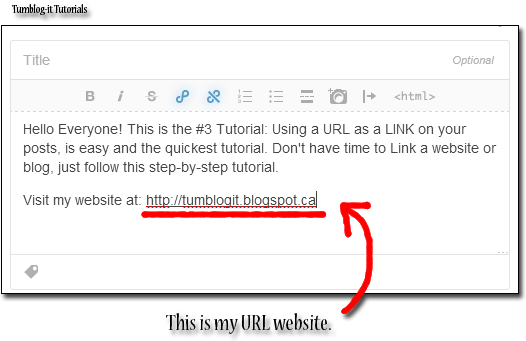
2. Now copy the URL you wish to share, and PASTE it on the Post. Here's an example:


3. To finish just click on Publish and you're done. This is one of the simple + quick ways of Links. It is used by most Tumbloggers, why? cause is super easy!

→ Tumblog-it! Tips: If your URL is to long it doesn't look appealing to the visitors, try the Tutorials #1 and #2 for a shorter link. 


#2 Tutorial: How to add a Word Link on your Post

Hello Everyone! This is the Tutorial #2 of How to add a Word Link. Is super easy and I be showing you step-by step how to do it. If you wish to visit our previous / next Tutorial on How to add a link just click on:

- Tutorial #1 How to Make a Direct Link Post
- Tutorial #3 Full URL on your Post

LET'S START THE TUTORIAL
1. In this tutorial you will learn to add a "Word Link" within a paragraph. What does this mean? It means when the person "clicks" on a word, he/she will be re-direct to another website or blog. Like the photo-example below:


2. To begin, you must create a paragraph, using the Dashboard option called "Text". Write your paragraph or sentences.

3. To Insert / Add a Word Link, you must select a text to do this simple double-click on the word or click where you want to begin the selection, hold down the left mouse button, and then drag the pointer over the text that you want to select.

4. Now that you have Select a Word, click on the "Insert/Edit Link Option" like in the photo below:


5. You're almost finish, now simply add the URL and Title of the Word Link. The title is the short-description that appears when your visitor hovers over the selected word. For example my description will say "This is Tumblog-it! 

Tumblog-it! Tips → Open Link a new Window → Recommended for visitors, easy friendly interface, allows the visitor to fast-navigate to another website without leaving your Tumblr blog.


6. To finish just click on "Insert Link" and you're Word Link is ready. If you wish to Link a complete sentence just follow the same instructions. Just Publish the Post and you have learn how to do a WORD LINK, good job!

Tutorial: How to make a Direct Link Post?


Hello Everyone! Since Tumblr is always up-grading and changing layouts (lol!) Tumblog-it! will keep updating the tutorials. To make a Direct Link Post there's 3 different options, but for now I will give you a tutorial step-by-step of the easiest way of making a Direct-Link.

If you wish to see the other techniques, you can visit:
- Tutorial #2 How to Make a Word Link within a paragraph
- Tutorial #3 Full URL on your Post

LET'S START THE TUTORIAL:
1. The fast + easy technique to Direct Link a Post is using the "Link Option" on your Dashboard. (your Tumblr homepage), the button looks like:


2. A small window will appear, like the picture below. If you add the URL (internet address) Tumblr will automatically give you the Name and description of the website/blog.

3. You can change the name and description if you don't like it. The "green name / box" is how the Link will be post on your Tumblr. Click on "Publish" and you finish. See how easy was that?


Tutorial: Add "Read More" on a Post


Sometimes post are wayyyy to long, and we want to make it shorter but how do I cut a paragraph? Is that possible? Yes it is! And is very easy, here's a quick tutorial how to add the "read more" quote on a Post.

○ First let's make a Post. For this example I'm choosing a Text Post.


○ Type anything you want. Choose where you want to have the page-break and click on the "Insert Read More Break" here's a picture of how to do it:


○ Now instead of showing the whole post, you'll choose what you want to show. Visitors just have to click on READ MORE - to see the full post. Here's how it looks like from my ExampleBlog.