Showing posts with label text. Show all posts

Fun tricks and tips: Rainbow Text #2

Hello Everyone! Remember the Rainbow Text Tutorial? There's another website! -- Glitter-graphics.com, allows you to convert any text into rainbow! There's one small difference from Glitter-graphics.com than the previous tutorial you won't be able to choose how many rainbows you can add to the text.

Let's start making some rainbows, shall we? 
1. Let's go to the website Glitter-graphics.com to start our rainbow. Click HERE.
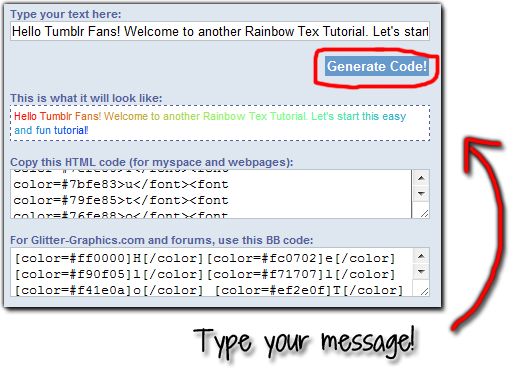
2. Now where it says "TYPE YOUR TEXT HERE" write whatever text you want to change into rainbow colour.
3. Click on GENERATE CODE.

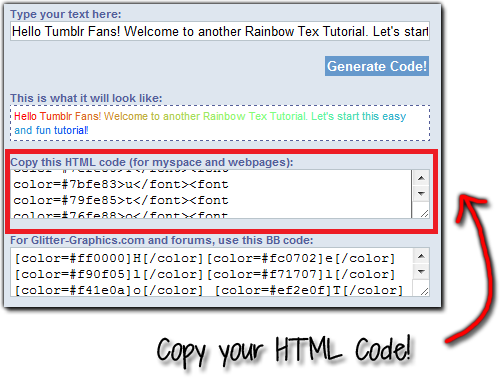
4. Choose the option that says COPY THIS HTML CODE and copy-it.

5. Let's Log in your Tumblr. On the DASHBOARD find the Customize Theme.
6. Click on the EDIT HTML and PASTE the code where you want to have the rainbow text.
7. Remember to UPDATE PREVIEW to see how the text looks -- if you like it just click SAVE and then CLOSE. And you're done!

Note: If you're trying to send the rainbow text as a post (Aa) it won't work. I try already to send my rainbow text as a post on the dashboard but it didn't work only appears underline. It does work on your Tumblr blog.


Tutorial: Add Neon Light Text to your blog!

Hello Everyone! And welcome to another Colourful Tutorial for you Blog! Did you saw the Flash words above this comment? Wonder how to do it? Well is super easy! Let's start adding colour to your blog right now!

• First COPY the following code:


• Now Log in to your Tumblr.
• Find the blog that you wish to add the Neon Colour Text.
• Go to Blog Settings to start Customizing your theme. If you don't know how to find Customizing theme click HERE! for the tutorial.
• Click on EDIT HTML.
• Now PASTE the code where you want to have the Neon Words.

• We're doing to EDIT the text, how you do that? Easy! Find the words: Welcome to Dynamic Drive and change it with whatever you wanna say.
• And you're finish! Happy Blogging!

Special thanks to: dynamicdrive.com for the coding.

How to Add or Edit Text on your Pop-Out Ask Box?


Hello Everyone! I have been ask many times "How to Add or Edit Text on your Pop-Out Ask Box?" and here's the answer.

REMEMBER: You must first enable the ask box for any ask options to work. How you do that? Click HERE for the tutorial.

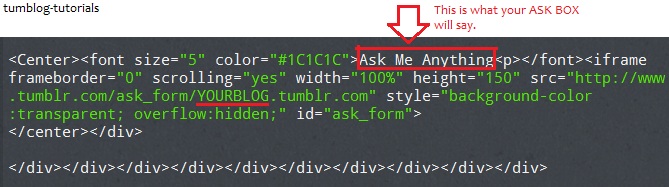
○ Let's start with the pop-out ask box from Tutorial: Get a Pop-Out Ask Box for your Tumblr Blog, after you finish that. You'll notice in Step #3 the 
Ask Me Anything is where you're going to add whatever you want the visitors to see in your ask Box. You will use HTML coding to do it.


Important Note: If you add the Pop-Out Ask Box from another website, just find the photo code or something similar. Here's the code, just copy-paste it and find it on your blog. (remember you can use CONTROL + F for a faster search)


○ After adding the HTML coding that you want - click on SAVE then CLOSE. Visit your blog and CLICK on the "Ask Link" your blog have.
Here's great Links that will help you out with the HTML codes:
• W3schools.com
• Html.net
• Quackit.com
• Tutorial: How to add a HTML Links to your Tumblr Blog